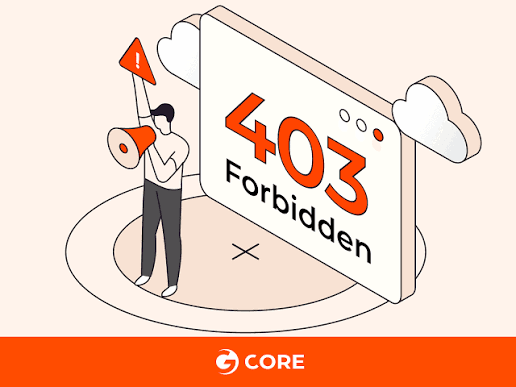

Identify the Scope of the Error. Before editing files, find out exactly where the block is happening. Check if the 403 error is sitewide, only on the /wp-admin/ login dashboard, or only when saving specific posts or pages.
- Deactivate Security Plugins
- Check the Hotfix for Missing Index Files: Ensure an index.php or index.html file exists in the directory, or leave the 403 error active, as it is a healthy security practice to prevent directory snooping.
- Fix Corrupted .htaccess Rules (Apache Servers): Locate the .htaccess file in the root folder (public_html). Rename it to .htaccess_old to deactivate it. Refresh your site. If it works, log into WordPress, go to Settings ➔ Permalinks, and click Save Changes to safely generate a clean, brand-new .htaccess file.
- Repair Incorrect File and Folder Permissions: Set the numeric value for all folders to 755 (and apply recursively to directories only). Set the numeric value for all files to 644 (and apply recursively to files only).
- ModSecurity or Server-Level Block: On shared hosting, you usually cannot modify individual ModSecurity rules yourself. Toggling it off entirely in your cPanel is risky because it leaves your entire site vulnerable. Contact your hosting provider.
- Troubleshoot Content Delivery Network (CDN) Blocks: CDNs like Cloudflare or Sucuri have independent firewall rules that can trigger 403 Forbidden messages before a visitor ever reaches your actual host. Log into your CDN dashboard, navigate to the security events log, and temporarily pause the CDN or disable its Web Application Firewall (WAF) to restore access.



Hi, this is a comment.
To get started with moderating, editing, and deleting comments, please visit the Comments screen in the dashboard.
Commenter avatars come from Gravatar.